
Object information
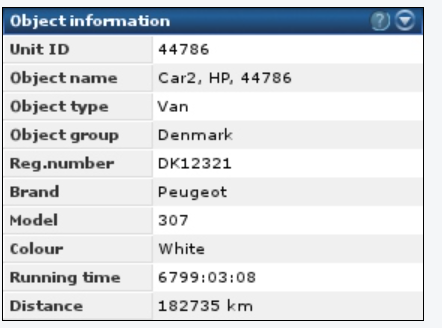
Object information provides an overview of the information recorded on the object.
Details of selected fields:
- Unit ID — The number of the unit connected to the object. This number can also be seen on the unit itself.
- Running time — Shows the time the object has had ignition on. The format is HOUR:MIN:SEC.
- Distance — Shows the unit’s total distance. This is calculated from the GPS coordinates and counts only while ignition is on.
- Driver — Shows the active driver of the object. This field is only shown when a driver is associated with the object. The association can be made through the system, a Dallas key, a Garmin unit, or SMS.
Last address
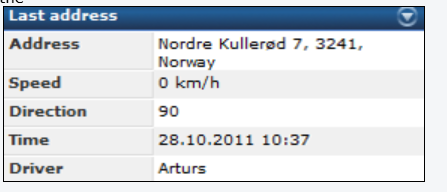
The block shows the last registered address for the object.
Field details:
- Address — Shows the last address. The view can be delayed, but this will be indicated, and the address will be shown as soon as it’s available.
- Speed — Shows the object’s speed. The speed is shown using the measurement unit set under company settings.
- Direction — Shows the direction of the object. 0 indicates north, 90 east, 180 south, 270 west.
- Elevation — Indicates the height above sea level, in feet.
- Time — The time the recording was made.
Information for the last trip
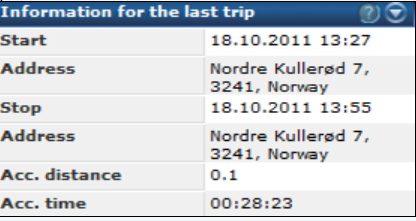
This window shows information about the last trip. If the object has ignition on, the last trip shown will be the active trip.
Field details:
- Start — Shows the date and time the trip started.
- Address — Shows the address of the start location.
- Stop — Shows the date and time the trip ended. If ignition is off, this shows the last recording from the object.
- Address — Shows the address of the stop location.
- Acc. distance — Shows the length of the trip.
- Acc. time — Shows how long the trip lasted. The format is HOUR:MIN:SEC.
Open in Google Earth
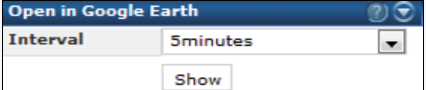
“Open in Google Earth” is a function for showing the position of the object in the external program Google Earth. Google Earth must be downloaded and installed independent of FleetSystem.
Interval means how often Google Earth should update the unit’s position.
Active objects
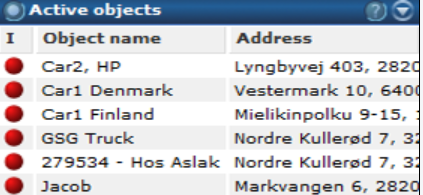
Active objects shows all objects that have reported within the last 24 hours. The fields are the same as on the main page.
The lines in the list are clickable and will switch to the object details for the chosen object.
Last events

The list shows recordings from the object. It is sorted by time/date and shows the oldest message at the top of the list.
The time range and events shown can be set using the filter in the list menu.
Event filter
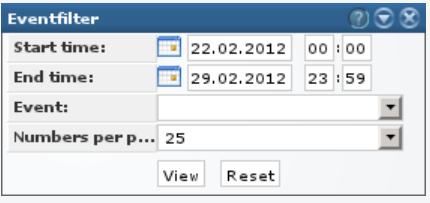
The event filter sets the display criteria for which period and events the “Last events” list shows.
To activate the filter, choose the criteria you need and click the view button. The list will then show additional text in the title line: “Filter active.” This indicates that the list no longer follows live updates, and instead sticks to the criteria chosen in the filter.
Use the reset button to reset the filter. Once done, the filter is removed and the additional text in the title line disappears.
Field details:
- Start time — The earliest time the list should show events from.
- End time — The latest time the list should show events for.
- Event — If you’re looking for a specific event within the chosen time frame, you can select it here.
- Numbers per page — Indicates the maximum number of events to be shown.
Note: The list starts listing data from the end time toward the start time. Whichever limit is reached first — start time or end time — is the one that applies.