Alarms
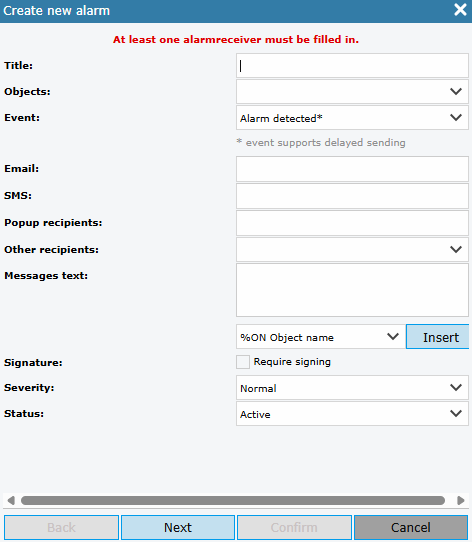
Here you can edit and create new alarms.
Event: An event occurs when the hardware itself detects that something has happened. The hardware sends a description of the event to GS Fleet’s servers. If an alarm has been linked to this event, a notification is sent out.
Monitoring: The server checks at regular intervals when the hardware last reported to the server. If reporting is interrupted for longer than the configured interval, the system sends out a notification.
POI: A POI, or reference point, is a coordinate defined in the system. If this POI is part of a POI group that has been configured for alarms, a notification can be sent out when the object/hardware passes a POI.
Sensor: If the hardware has temperature sensors, it is possible to create an alarm for when the temperature rises above or falls below a predefined value.
For more information, select “Help” or click on … 
Create New Alarm
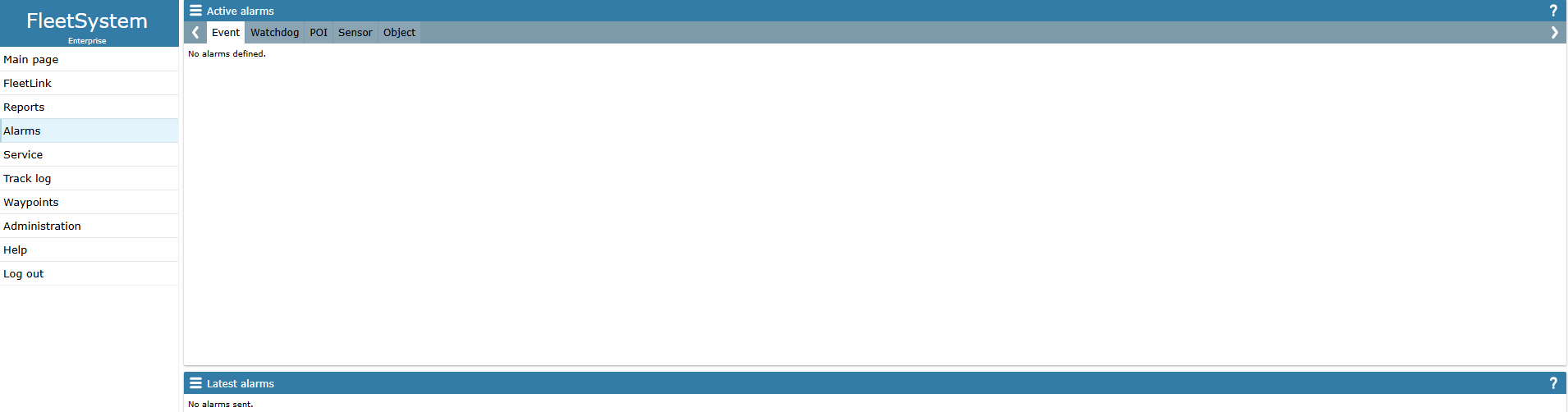
Name: Give the alarm a name.
Object: Select which objects the alarm should apply to.
Email: Enter the recipients who should receive the alarm via email.
SMS: Enter the recipients who should receive the alarm via SMS. The country code +46 must always be included.
Pop-up recipients: Select which recipients should receive the alarm in a pop-up window while logged into the system.
Other recipients: Add additional recipient options.
Min and max value: Enter the temperature limits that should trigger the alarm.
Text message: Select what information should appear in the alarm message. If multiple objects are selected within the same alarm, you can use the dropdown menu to select, for example, “%ON.” The alarm message will then display the name of the object that triggered the alarm — so you don’t need to create a separate alarm for each object.
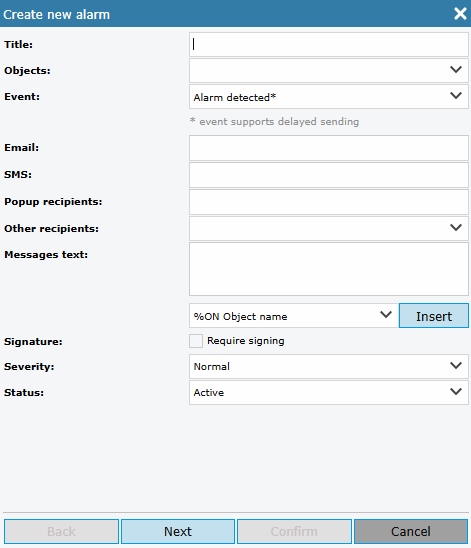
Delay sending by: The number of minutes the alarm should be delayed before being sent. Note: the alarm will still be sent, but only after the number of minutes selected in the dropdown.
SMS Control: Select “Temporary Activation / Deactivation.”
(SMS Control activates or deactivates alarms via the SMS function.)
Regional settings: Desired time zone and language.
Periods: Times/days when the alarm is active. Select “Specified” to edit this.
Click confirm to activate the alarm.