
Objects
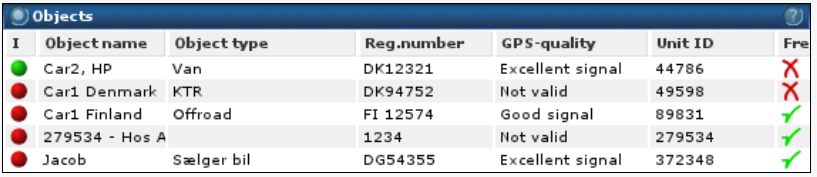
This list contains a textual presentation of the objects shown on the map. The fields shown can be selected under “Select columns.” The number of fields available depends on the modules enabled in the system. Each line is clickable and brings up a more detailed page for the selected object.
Explanation of some of the available fields:
- Ignition — Shows the current ignition status. A red ball indicates ignition off, a green ball indicates ignition on, and a grey ball indicates that the object has not reported in for 24 hours.
- Time — The last time the object reported. If this is under 24 hours, only the time is shown; if more, only the date is shown.
- Object name — The name of the object. The actual format depends on the setup done under customer settings.
- Driver — The current driver of the object. This can be selected under Administration, via a Dallas key, from a Garmin unit, or with SMS.
- ETA — Garmin only. The Garmin unit’s estimated time of arrival, reported every 10 minutes.
- Unit ID — The ID of the unit connected to the object.
- Free / busy status — When this module is enabled, the icon indicates whether the object is free or busy. The icon is clickable and changes status when used.
Objects-light
List of objects, low-permission version.
Customer information
The customer information shows the information Guard Systems has registered for the logged-in customer. If this information is wrong, the system administrator can contact Guard Systems at kundeservice@guardsystems.no to have it corrected.
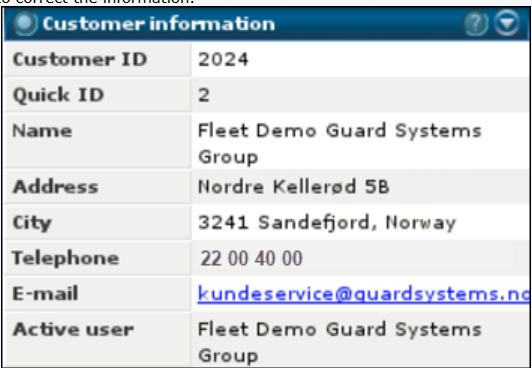
The fields that can be shown in this view:
- Customer ID — Customer’s FleetSystem ID.
- Quick ID — Customer’s ID at Guard Systems.
- Name — Customer’s official name.
- Address — Customer’s address.
- City — Customer’s zip code, city, and country.
- Telephone — Customer’s main telephone number.
- E-mail — Customer’s main e-mail address.
- Active user — Name of the logged-in user.
Define filter
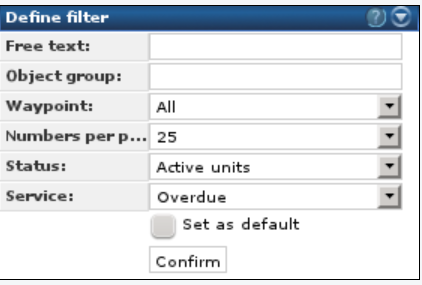
The filter defines which units are shown in the object list and on the main page. When more than one filter is selected, only the objects matching all of the selected filters are shown.
The following filters are available:
- Free text — Shows only objects where one of the following fields contains the text: Unit ID, alias, registration number, object type, and driver name. These fields are searched regardless of whether they are shown.
- Object group — Shows only the objects connected to the selected groups. Selecting “Without group” shows any object not connected to a group.
- Waypoints — Shows only the objects connected to and within the selected waypoint(s).
- Numbers per page — Selects how many objects are displayed on the main page at a time. This applies to both the list and the map. Which units are shown first depends on the selected ordering.
- Status — Shows only objects with the selected status. Active units are those that have reported to the system within the last 24 hours.
- Service — Shows objects with the selected service status.
- Set as default — When checked, stores this search as the default for the next time you log in. This is stored per user.